Feast your eyes on these two new premium designs from partner designer e.m. papers debuting today in the Glö design Boutique:
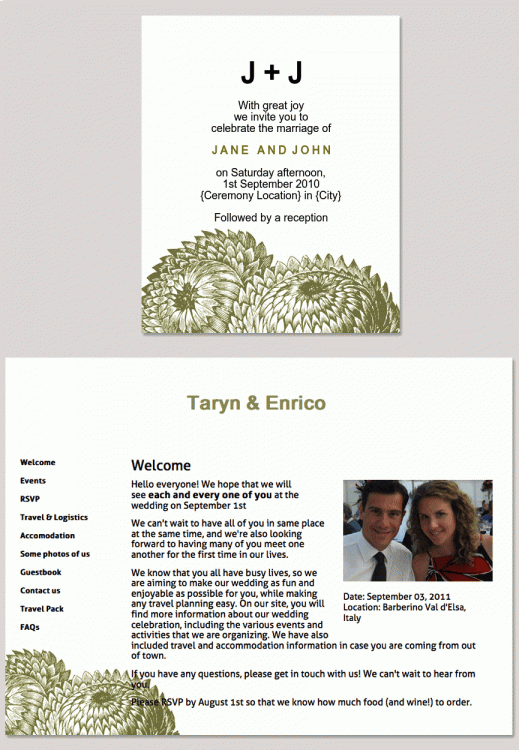
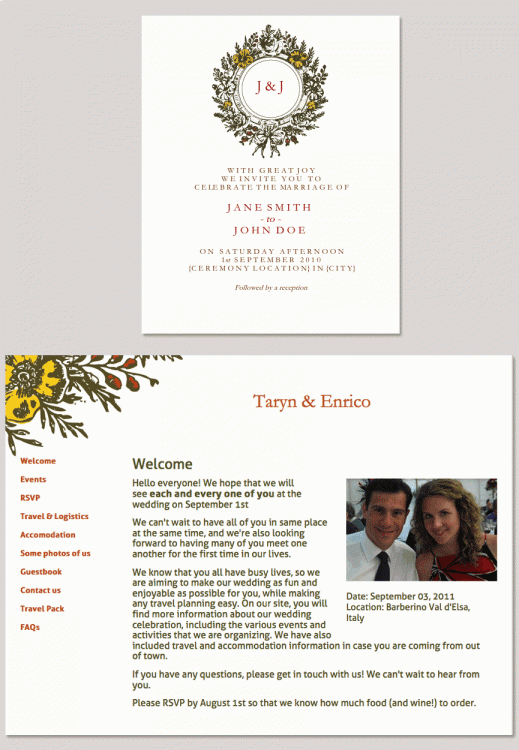

Feast your eyes on these two new premium designs from partner designer e.m. papers debuting today in the Glö design Boutique:
Some exciting news that I’ve been asked to guest blog on Huffington Post Weddings! Today, you can read the very first post: 7 Widgets for a Guest Friendly Wedding Website
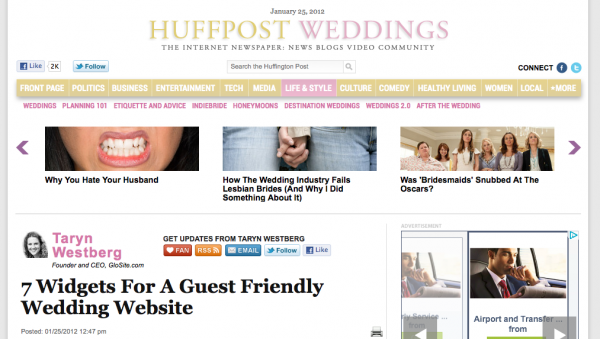
I have to confess, not being a born writer – doing something like this on such a main-stream media outlet felt rather scary at first….but now I am feeling pretty tickled to have it out there in cyberspace!
If you enjoy the post – I’d love for you to comment on, like or tweet it! The best part of my job is all of the interaction I get to have with awesome Glöbies like you.
One of my favorite features for the Glö wedding websites is that couples can add any widget they’d like to spice up their site.
What the heck is a widget, you ask? Basically, it’s a short piece of pre-made code that allows you to add everything from a flight search, to a wedding countdown, to a map of things to see and do, or even a song request list to any of your Glösite pages.
The best part is that you do not need to have any programming or technical knowledge to add widgets to your website.
One of my favorite places to find widgets is on Widgetbox. It’s a site full of fun, FREE widgets that do a million different things. Here’s a quick tutorial on how to find a widget on Widgetbox and add to your Glösite:
(1) Visit Widgetbox.com and click on the Widgets Tab

(2) Choose “find widgets”
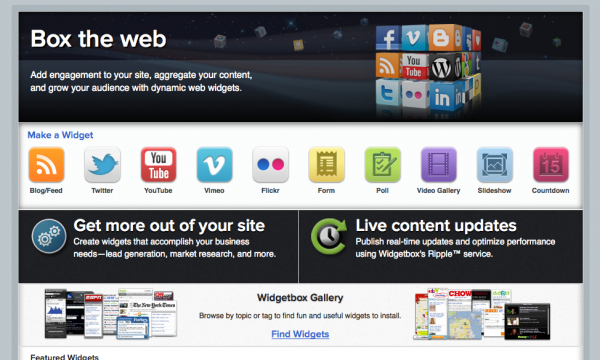
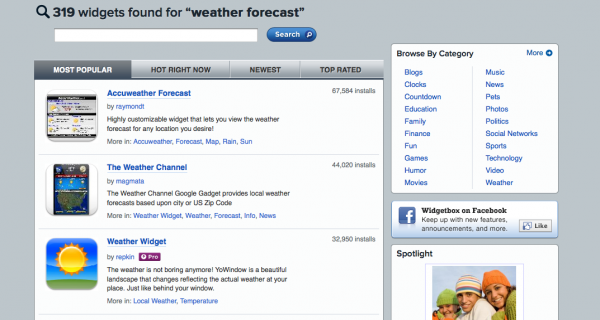
Here you can browse by category, see what’s new and also search for widgets. Let’s do a search. Say you’re looking for a weather forecast for the place where your celebration will take place. Type in “weather forecast” or something similar in the search box
(3) Scroll down the list til something jumps out at you. I’m a fan of the Weather Channel.
On the widget page, you’ll be able to preview the widget as well as see any comments or reviews others have left about the widget.
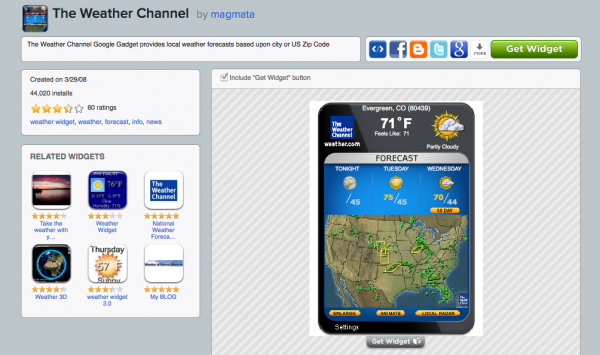
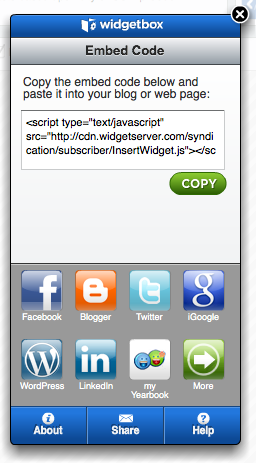
(4) Once you find a widget you’re in to, click on “Get Widget” below the widget itself. This brings up the code you’ll need to copy and then paste into your Glösite page.
(5) Now go to glosite.com and log into your account. Go to “Manage Glösite” > “Edit Pages” and click on the page where you’d like to add your widget. On this page, you have two options for adding the code.
The first is to paste it into the widget box at the bottom. This will add the widget to the bottom of your Glösite page.
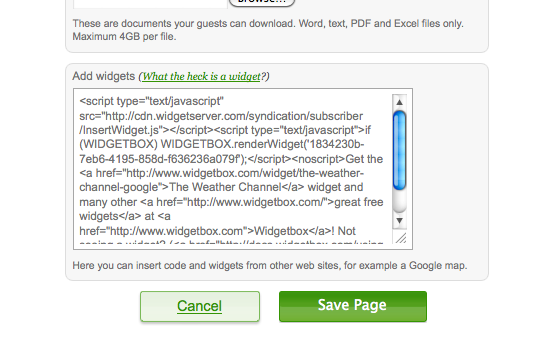
The second option is to use the HTML function in the text box. This will allow you to place the widget anywhere on the Glösite page – above or below any text, images or other widgets that you want to add.
(8) After you’ve added the code, save the page and go to view on your Glösite! The widget should appear just like this!
Have you discovered any fun widgets? If so, let me know in the comments!
It dawned on me today that you might not know about our Glö YouTube Channel. Here you’ll find several helpful how to’s, including:
How to add a picture to your Glösite (wedding website) pages
and more advanced (but still not difficult) features like:
How To add an image that links to another webpage (this is great for registry pages…)
So I get more requests for “wedding song” widgets than anything else. A little Googling turned up this most wicked-cool of widgets from Freak Music. Check it out:
With a few clicks, add any image you want (that’s the Glö mascot Frankie) and customize the colors. When you’re all set, head over to Glö and add it to any page of your wedding website.
Your guests can add songs and, better yet, VOTE on what they want to see played. genius. get it here and have fun with this!
** IMPORTANT TECH NOTES **
Font colors
If you have white font on your Glösite pages, then this widget will pick up on that font color and display the song titles in a white font against the white background. Result: invisible text! To fix this issue, copy and paste the following code snippet into the HTML or widget box right before the widget code:
<style>#wwrapper-inner #list { color: #0000FF; }#wwrapper-inner .form_box { color: #0276FD; }</style>
You can customize the colors by changing the color hex codes (those are the 0000FF and 0276FD codes you see above.) Here is a color picker tool to help you decipher the hex codes for the colors you want to use.
Header image
If the image at the top of the widget is not displaying, make the following change to the widget code:
The line that reads: var img = ‘http://weddingsongs.freakmusic.co.uk/images/img1.jpg’ (located near the bottom of the code)
should be changed to: var img = ‘images/img1.jpg’ (i.e., cut out this bit: http://weddingsongs.freakmusic.co.uk/)
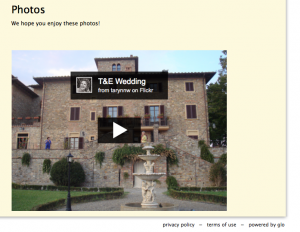
A flickr slideshow on my Glösite
I’ve written before about adding a Picasa slideshow to your Glö wedding website, but I know that lots of you also use flickr to store all of your fabulous photos. We don’t like anyone to feel left out, so here’s a similar tutorial on how to add a flickr slideshow to your Glösite.
This “how to” will focus on adding a slideshow of a particular album I have on flickr, but the same principle applies to adding a slideshow of your photostream or an individual photo.
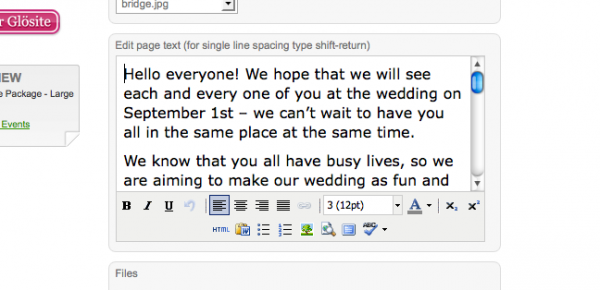
1) Go to your flickr account and on your photostream, set or album you’d like to add, click on an individual photo.
2) Click on the three dots in the bottom-right corner and choose “View Slideshow” from the pop-up menu
3) This takes you to a black page with your slideshow or photo in the middle. Click on “Share” in the top-right corner of this page
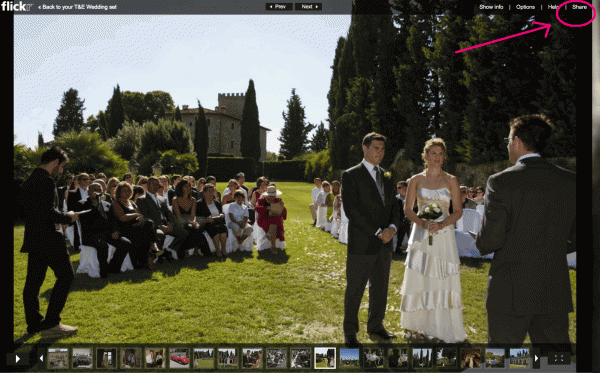
4) You can either select the code from the “Grab HTML code” box or else you can click on “customize HTML code” below to change the size of your slideshow
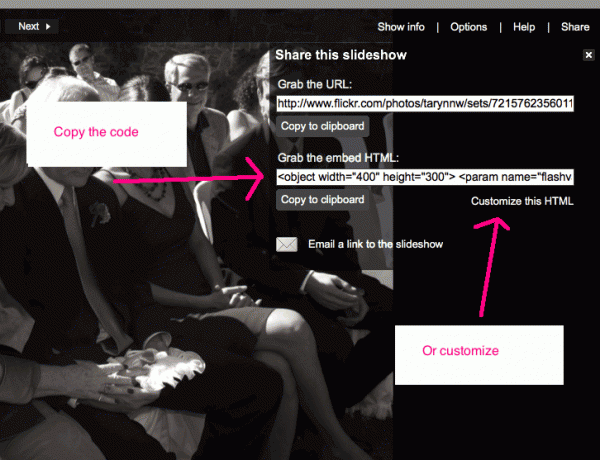
4b) If you click on “customize HTML code” make your selections (I like the medium size for Glösites) and copy the new embed code
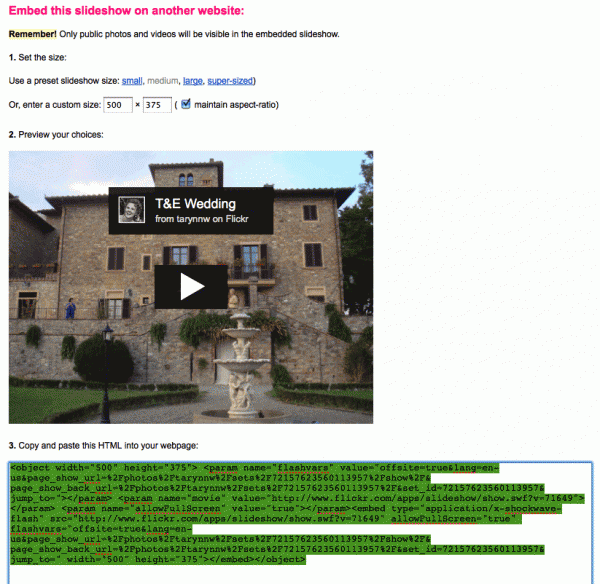
5) Go back to glosite.com and navigate to the “edit” page for the page on your wedding website where you’d like to add the slideshow (Manage Glösite > Manage Pages > edit)
Scroll down to the widget box at the bottom of the page and paste in the code, or else you can use the HTML button on the text editor to add the slideshow to the middle of your page
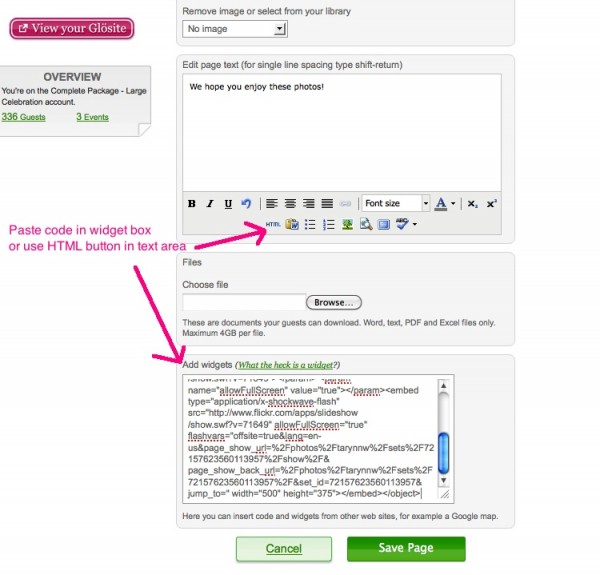 7) Save the page and view on your Glosite
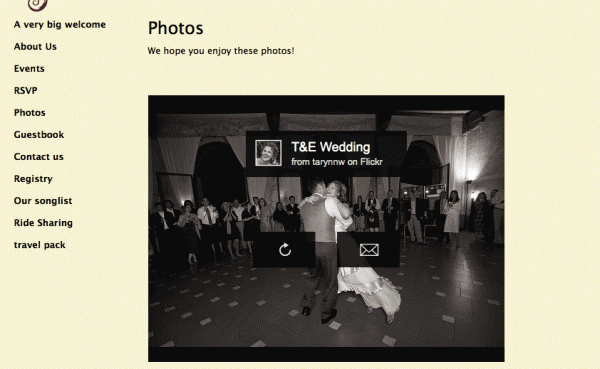
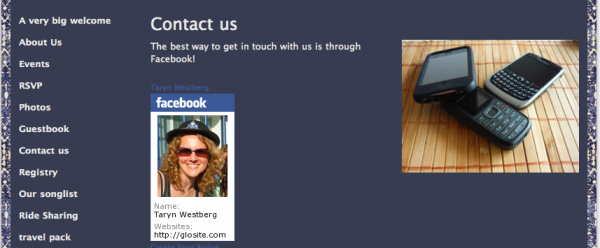
Do you pretty much live on Facebook? Me too. Want lots of people to like you? Me too!
Here are the steps you can take to add a facebook badge to the “Contact Us” page on your Glö wedding website
1) Go to facebook and view your profile
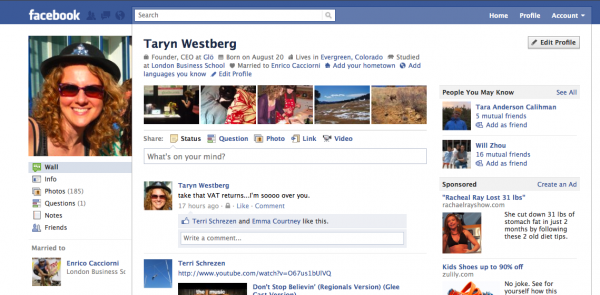
2) Scroll to the bottom of the left column and click on “Add a badge to your site”

3) Click on “Edit This Badge”
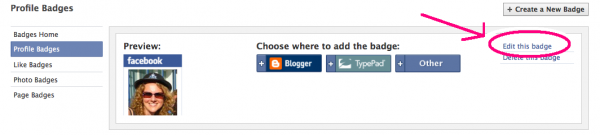
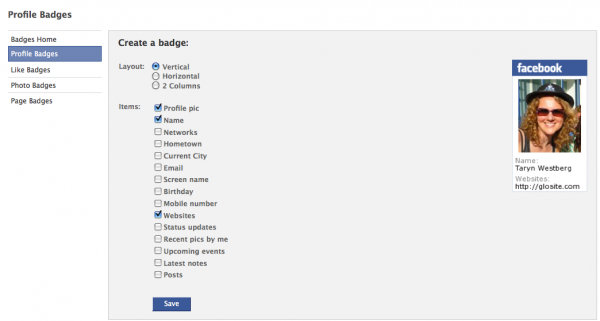
4) Customize what you’d like to have on your badge and click ‘Save’
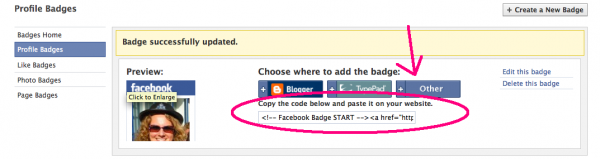
5) Click on “other”, then highlight and copy the code below
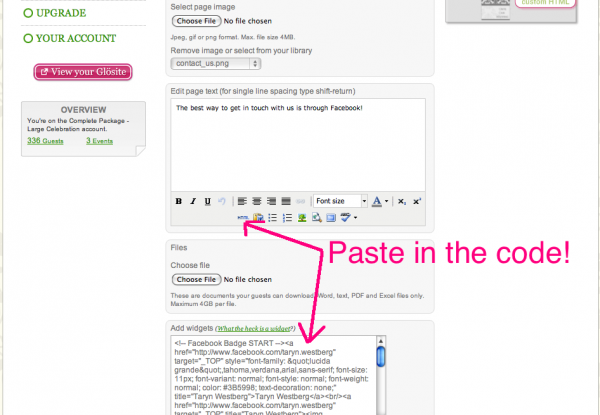
6) go to glosite.com > “Manage Glösite” > “Edit pages” and click on “edit” for your Contact Us page
Scroll to the bottom and paste the code into the widget box or else use the HTML button to paste the code into the text area of your page.
Then click “save page”
7) View your Glösite and see how it looks!
UPDATE: Now that Picasa is linked to Google+, some of the features have changed slightly. The directions below are still valid if you work via the old Picasa web interface, which you can find but cutting and pasting the original link into your browser: https://picasaweb.google.com/home
I’ve had a few questions lately about how to add a Picasa slideshow to one of your Glösite pages. In case others are wondering the same thing, here’s a quick video that should help. (for some reason, the video appears to go faster than the recording, but I hope it’s close enough to make sense!)
To recap, the key steps are:
1) Ensure your album (or image) has the right visibility settings: Either Public or Visible to anyone with the link
2) grab the embed code from the lower-right side of the picasa page for that album or image
3) Paste the embed code onto your Glösite page – either into the widget box or using the “html” button of the text editor
4) Save your page, and view!
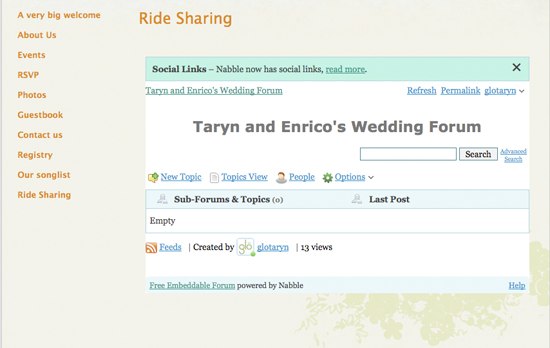
Your wedding website is a great way to build a connection with your guests, but what about when your guests want to connect with one another? As we say around Glö HQ – there’s a widget for that! In this case, the widget is a forum.
A forum is a perfect way to facilitated conversations between guests who may not know one another, be friends on facebook, etc. It’s perfect for organizing rides from the airport, spare beds in hotel rooms, and other travel logistics.
One forum provider who appears popular with Glö-bies is Nabble. With a few steps, you can get a forum up, running and embedded onto a page in your Glösite. Here’s a quick overview:
1) sign up for a Nabble (or another forum) account
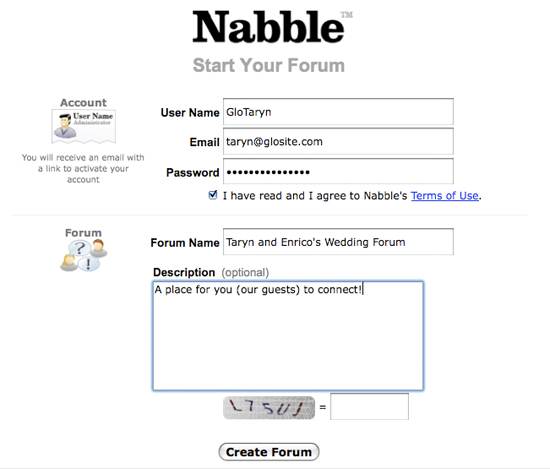
2) Customize appearance, etc.
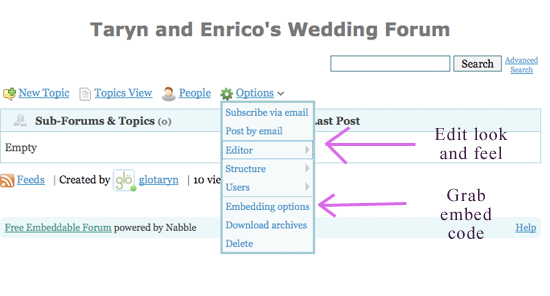
3) Grab the embed code
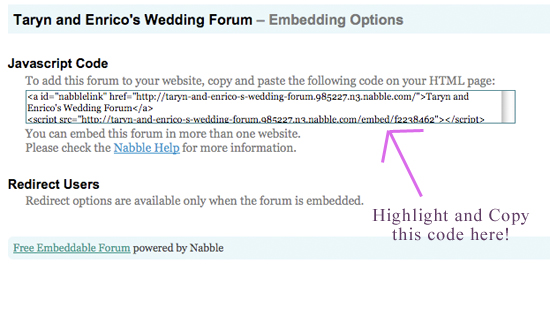
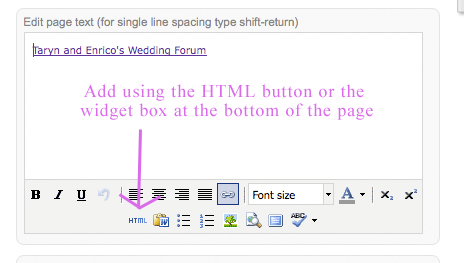
4) On your Glösite – choose a page where you’d like to add your forum. Click on the “html” button on the text editor and paste in the code, or paste the code in to the widget box at the bottom of the page. Save
5) Enjoy your forum!
I’ve had a few questions about how to spice up a Glösite with extra photos in the past few days. So I made a handy-dandy video explaining exactly how to do it. Just in case you have the same question..I hope you enjoy!